QR Code Kiosk
QR Code Kiosk
Scan the code on the kiosk and your phone becomes part of it: fill out the form, browse the screens, drive the whole presentation. No app to install.
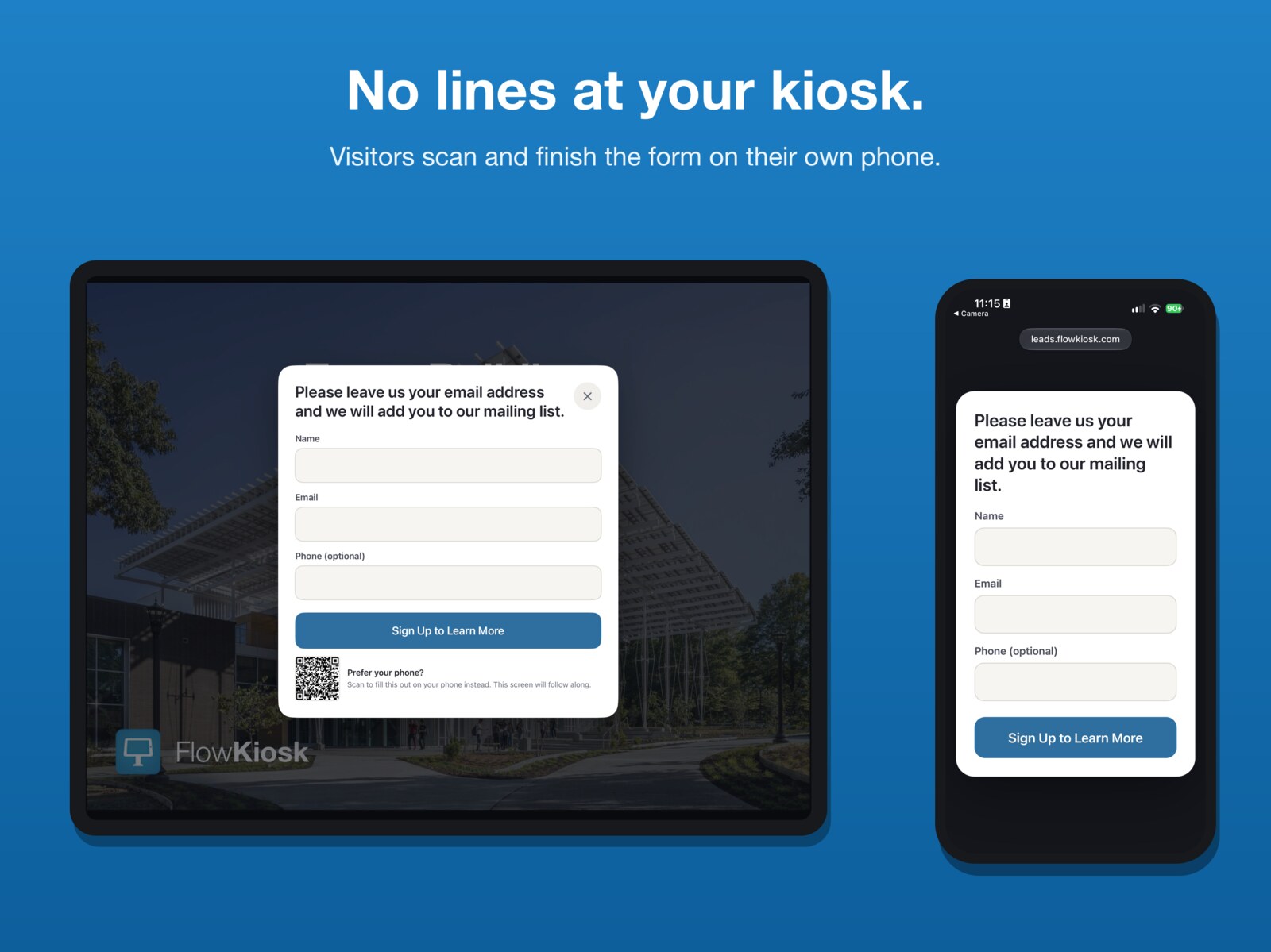
QR phone forms
The kiosk form shows a QR code. Visitors scan it and fill out the form on their own phone, with your branding and your questions, while the kiosk follows along and thanks them on the big screen.
The submission still joins their kiosk visit, so you see what each lead explored before they signed up. And like every Flow Kiosk entry, it’s covered by the No Lost Leads Guarantee.
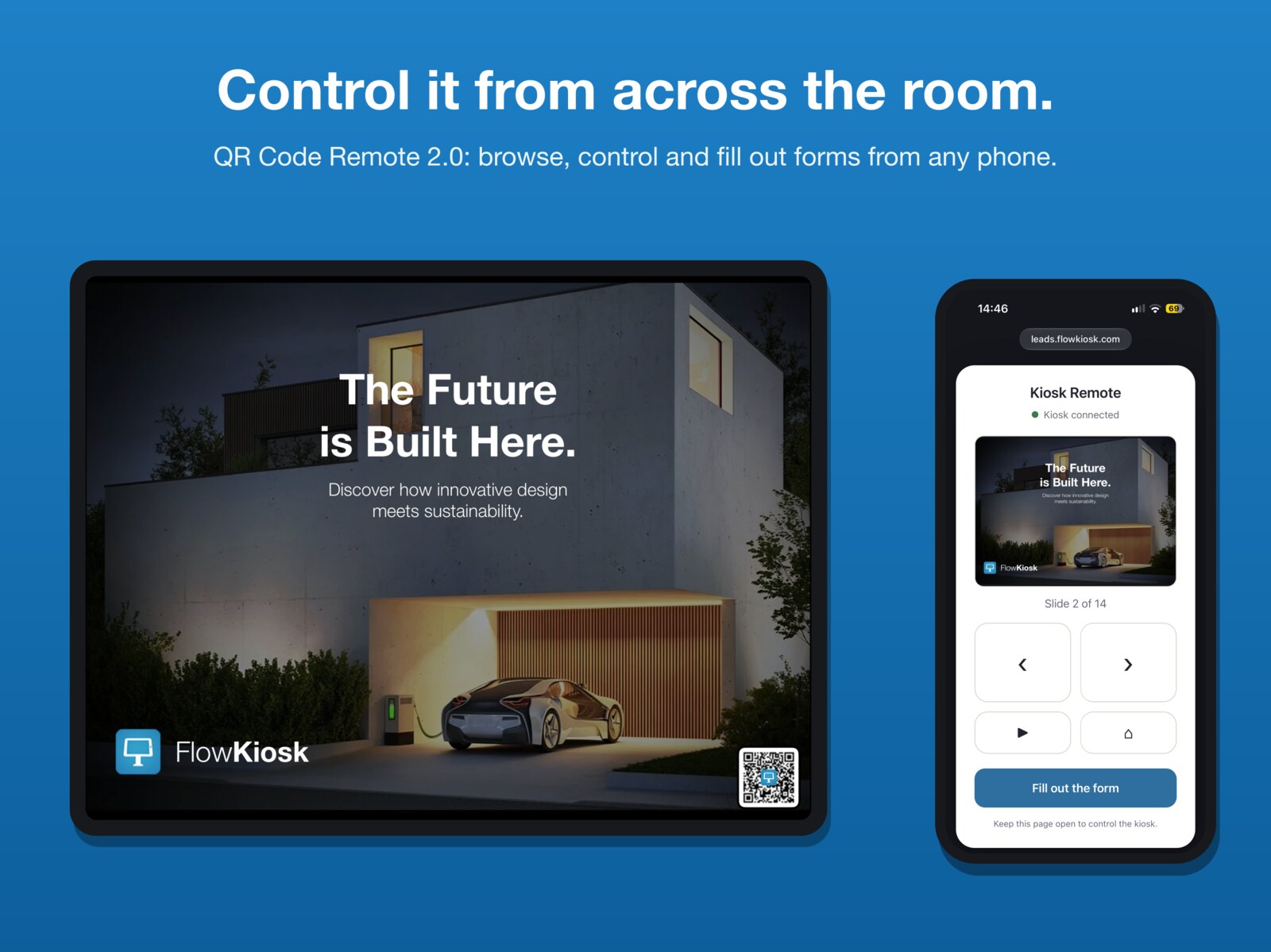
QR Code Remote, rebuilt
The remote is now a web page, not an app. Scan the corner QR and get screen thumbnails, previous, next, play and home, right in the phone’s browser.
› Next
▶ Play
⌂ Home
i Kiosk info
Several phones can drive at once, it reconnects on its own, and it works for staff and visitors alike.
Where the phone makes the kiosk better
Busy booths
No queue at the iPad. A crowd can scan the code on the kiosk and sign up from their own phones at the same time.
Tours and presenters
A docent or rep drives the kiosk from across the room: browse screens, play the video, bring it home.
Accessibility
Visitors use their own device, their own text size and their own assistive tech to read and respond.
Touch-free venues
Hygiene-sensitive spaces get a fully contactless kiosk: scan the code, everything happens on the visitor’s phone.
How to set up a QR code kiosk
-
Create a flow
Use a template or create from scratch. Flows are screens of video, images, galleries, PDFs and sign-up forms. Five minutes or five hours, as simple or as deep as you want, and no coding needed.
-
Set the QR code to display
Tap the QR Code button in kiosk settings, turn the display on, and pick where the code sits on the iPad screen.
-
Launch the flow and guests start scanning
Put the iPad in Kiosk Mode. Every visitor who scans gets the remote and the form in their phone’s browser, instantly.
QR Code Kiosk FAQ
Does my iPad need to be connected to the Internet for the remote to work?
Yes. The QR Code remote works when your visitor scans the code and launches a web browser. The browser sends signals to our server, and the iPad receives them over the Internet. (The kiosk itself, your content and your forms all still work offline: only the live phone remote needs a connection.)
How long is the QR code session active?
The session stays active for as long as the iPad is in an active state. When the kiosk resets after inactivity, a new QR code is generated.
How do I change the text that appears on the phone when users tap the “i” icon?
When posting a flow there is an optional Description text area. Use it to explain more about the kiosk or your organization. You can include a link by simply adding a web address like http://flowkiosk.com
If a visitor taps links within the flow on their phone, does the kiosk change too?
Yes, the remote drives the kiosk: when a visitor navigates on their phone, the kiosk follows. The play button on the phone remote brings video playback back under their control.
Can several people control the kiosk via the QR code remote at once?
Yes, simultaneous users are allowed. The QR code contains an ID that refreshes on the schedule set by the Inactivity Reset in your kiosk settings, so the audience changes with each session.
Put a QR code kiosk to work
Download Flow Kiosk free and start a 7-day Kiosk PRO trial.